Set a default assignee and due date on your Task templates

Your Task templates can now decide who a Task is for and when it is due, so the Tasks they create arrive ready to action.
Each template can carry two new defaults:
- A default assignee. Choose a specific user, the Project owner (resolved for each Project), or the value of a user custom field on the Project, for example a "Project manager" field that already names the right person.
- A default due date. Set it as a number of days from when the Task is created, and every Task gets its deadline automatically.
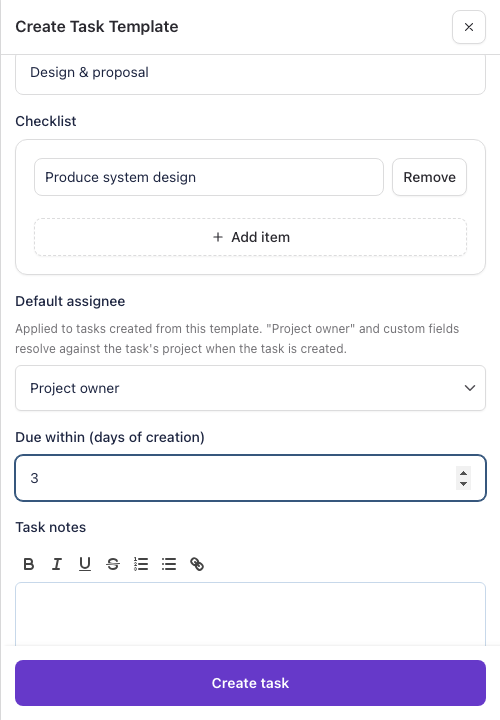
These defaults apply both when you create a Task from a template yourself and when an automation creates the Task for you. Because the Project owner and custom field are worked out for each Project as the Task is created, a stage-triggered automation lands the Task on the right person every time, even with no one there to choose.
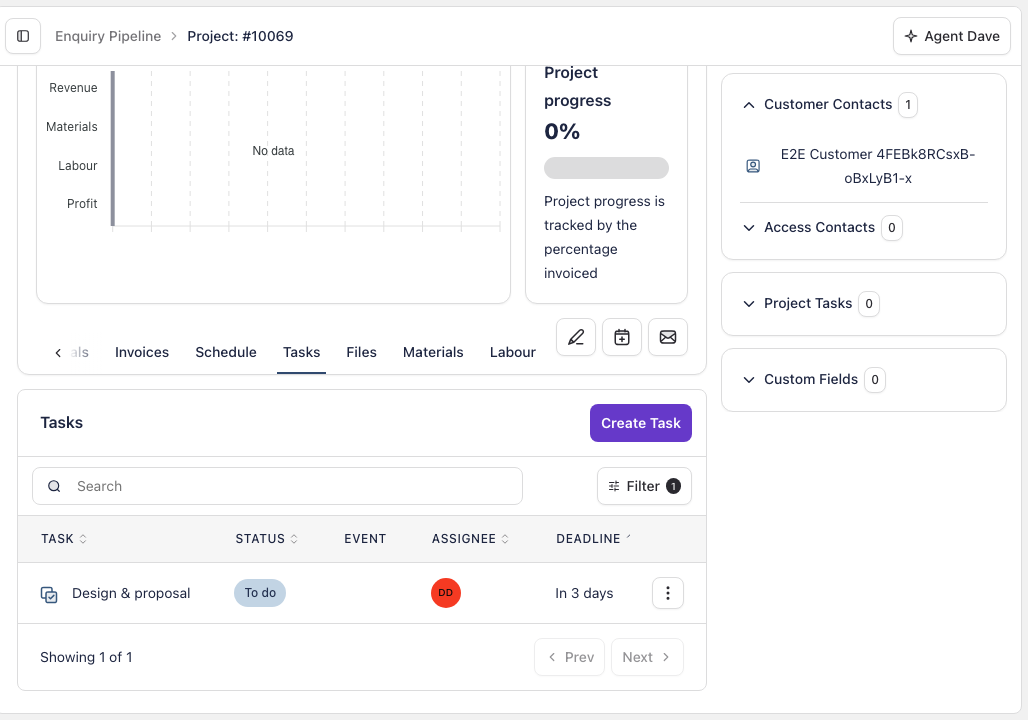
A few things worth knowing:
- Create a Task yourself and the defaults prefill but stay editable, so you can adjust before saving.
- If there is no one to resolve to yet (an empty field, or a Project with no owner), the Task is left unassigned rather than blocking.
- Tasks created by an automation now notify the person they are assigned to, so nothing sits unseen.
You will find the new options on the Task templates page.