Assign a Task to a whole Team

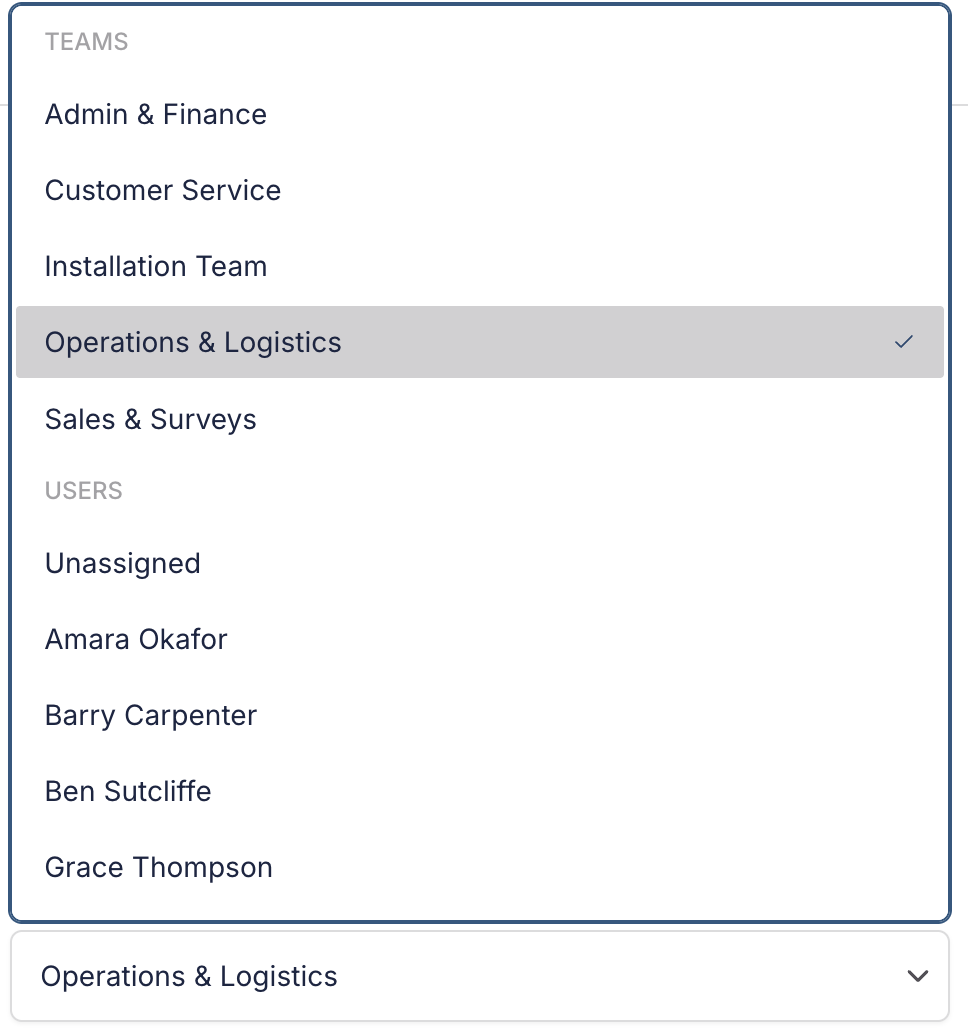
A Task can now be assigned to a Team rather than to one person. Pick a Team as the assignee and the Task becomes a shared queue that everyone on that Team can see, and that any one of them can complete.
Your Teams sit above your people wherever you set an assignee, so picking one is the same two clicks as picking a person.
How a shared queue behaves
Assigning to a Team doesn't notify everyone on it. A queue five people are expected to work from shouldn't land in five inboxes, so nobody gets an assignment notification for a Team's Task.
Being on the Team lets someone see the Task and complete it. It doesn't let them reassign it, so a shared queue stays shared rather than quietly becoming one person's.
For restricted roles this is the useful part. A Sales Agent or Field Agent who can otherwise only see Tasks assigned to them will now see their Team's Tasks as well, and nothing else about what they can reach changes.
Teams in your Task lists
A Team-assigned Task carries a Team badge, different from the round avatar a person gets, so a queue and an individual read apart at a glance.
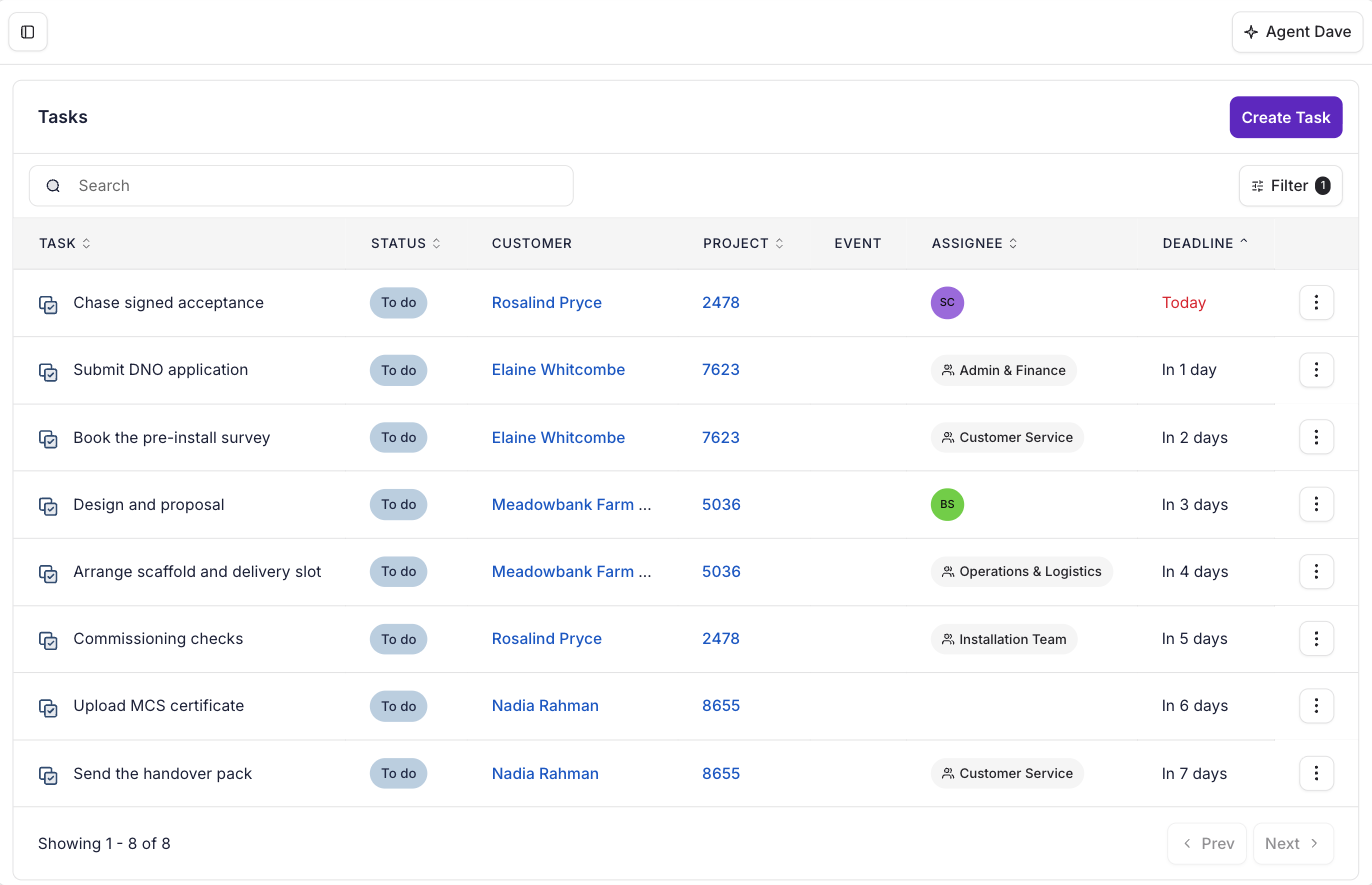
Filter the assignee by a Team to see just that queue, the same way you'd filter to a person. Unassigned means nobody at all, so it covers only the Tasks with no Team and no person on them.
Templates and automations
A Task template can take a Team as its default assignee, alongside the person, Project owner and user Custom Field options that arrived with template defaults. A stage-triggered automation can then drop work straight into a team's queue with nobody there to choose who does it.
You'll find Teams in the assignee list on any Task in the Payaca web app, and on the Task templates page. Teams themselves are managed on your Users page.